
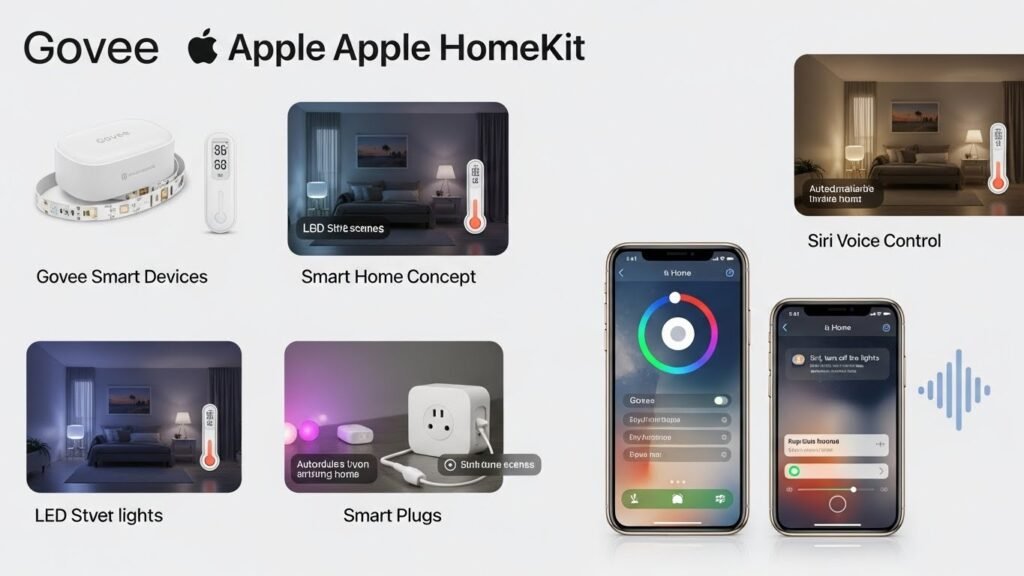
Integrating Govee devices with Apple HomeKit opens up a whole new world of smart home control, providing convenience, ease of use, and enhanced automation features. With Apple HomeKit, you can control your Govee devices using Siri voice commands, create custom automations, and manage them all through the Apple Home app. This comprehensive guide will show you how to connect your Govee devices to Apple HomeKit in simple, easy-to-follow steps. We’ll explore different integration methods, troubleshooting tips, and how to make the most out of your smart home.
Ways to Integrate Govee with Apple HomeKit
Software-Based Solutions
AddToHomeKit (Recommended Option)
If you’re looking for an easy and user-friendly way to connect your Govee devices to Apple HomeKit, AddToHomeKit is the perfect solution. It requires no technical expertise and supports over 2000 devices, including Govee.
How to Set Up AddToHomeKit:
- Visit the AddToHomeKit website.
- Select “Govee” as the device you want to integrate.
- Choose your operating system (Windows or Mac).
- Download and install the Govee HomeBridge plugin.
- Follow the prompts to activate your account and complete the setup.
- Once installed, your Govee device will be available for control through the Apple Home app or Siri.
This method is quick, straightforward, and requires minimal effort. For those who want to avoid any complicated setup, AddToHomeKit is the ideal choice.
HomeBridge
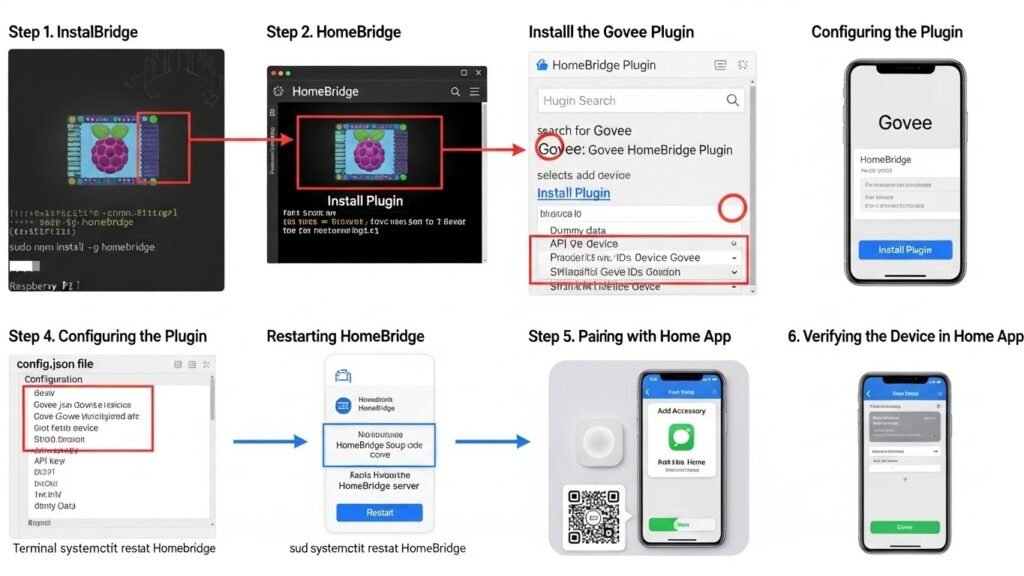
For those who prefer more flexibility and control, HomeBridge is an excellent choice. HomeBridge is a Node.js-based server that connects non-HomeKit devices to Apple HomeKit, enabling Govee devices to be used with Apple’s ecosystem.
Steps to Set Up HomeBridge:
- Install HomeBridge on a Raspberry Pi, PC, or Mac.
- Download and install the Govee plugin from the HomeBridge repository.
- Edit the config.json file to input your Govee device credentials.
- Restart HomeBridge to apply the changes.
- Open the Apple Home app and pair it with your Govee device.
HomeBridge is best for those who are comfortable with technical configurations. It allows for greater customization and flexibility but requires more setup than simpler solutions like AddToHomeKit.
Hardware-Based Solutions
ATH Bridge
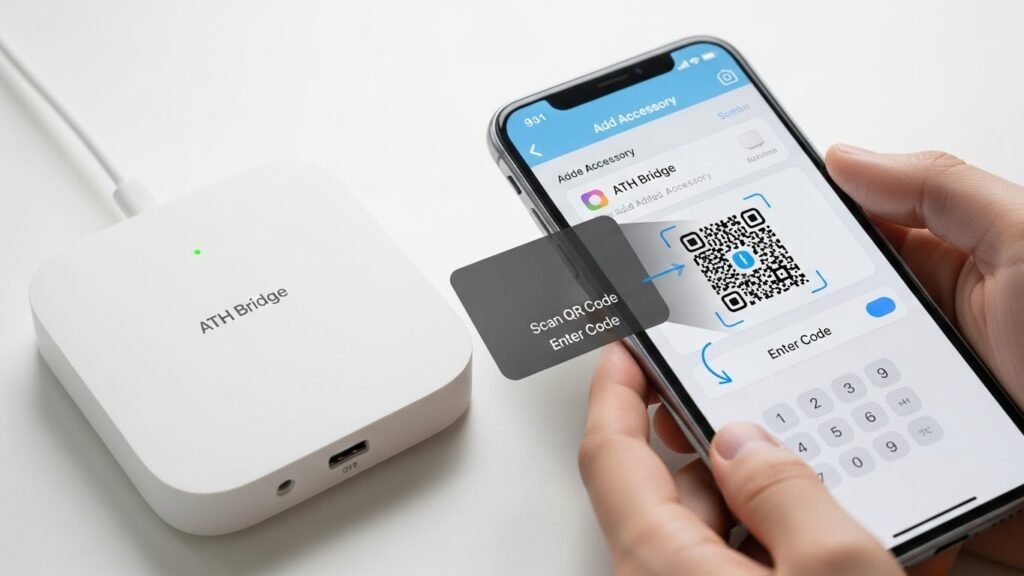
The ATH Bridge is a hardware solution that acts as an intermediary between Govee devices and Apple HomeKit. It’s an excellent choice for users who prefer not to get into software installations or complex configurations.
How to Set Up ATH Bridge:
- Install the HomeBridge plugin on the ATH Bridge device.
- Open the Apple Home app and scan the provided QR code or enter the 8-digit HomeKit setup code from your Govee device.
- Follow the on-screen instructions to complete the pairing process.
ATH Bridge is a great option for those who prefer a hassle-free, plug-and-play setup with little technical effort involved. It integrates seamlessly with Apple HomeKit, making it perfect for users who need quick setup without dealing with software.
HOOBS (User-Friendly Version of HomeBridge)
HOOBS (HomeBridge Out of the Box System) is a more user-friendly alternative to HomeBridge. It offers a simplified solution for integrating Govee devices with Apple HomeKit. HOOBS provides an easy-to-use interface that allows users to manage and configure their devices through a graphical dashboard, making it ideal for beginners or those who want a quick setup without a steep learning curve.
How to Set Up HOOBS:
- Install HOOBS on your Raspberry Pi or PC.
- Open the HOOBS dashboard and search for the Govee HomeBridge plugin.
- Install the plugin and follow the prompts to pair the device with your Apple Home app using a QR code.
- Once set up, you can start controlling your Govee devices via Siri or the Apple Home app.
HOOBS is a fantastic choice for users who want the benefits of HomeBridge without the complexity. It’s a ready-to-use solution that simplifies the entire process.
What You Can Do with Govee and Apple HomeKit Integration
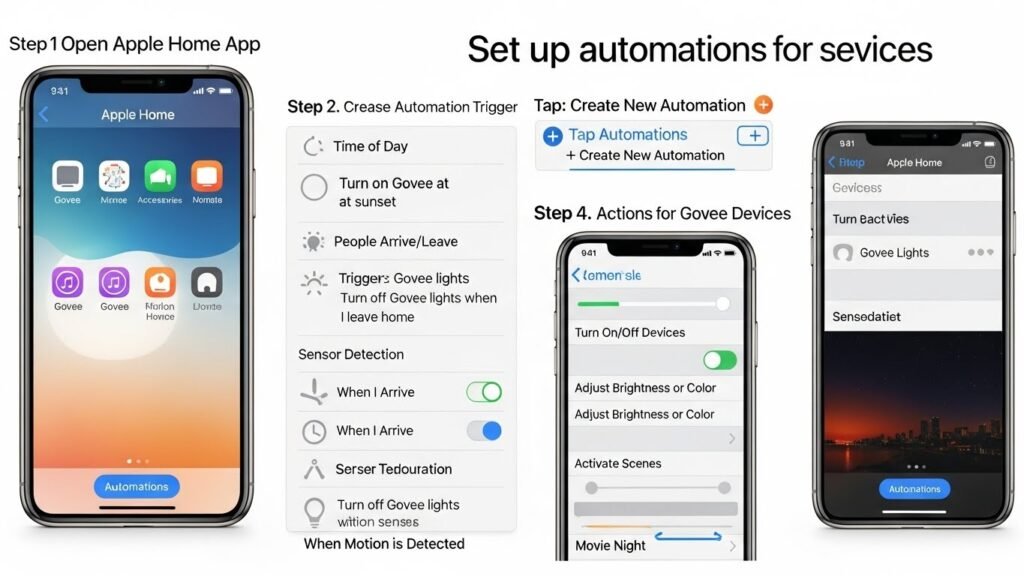
Once your Govee devices are connected to Apple HomeKit, you unlock a range of powerful features that elevate your smart home experience.
- Control Govee Devices: You can control your Govee lights, LED strips, smart plugs, and more from the Apple Home app or by using Siri.
- Voice Control: Use Siri to control your Govee devices hands-free. You can issue commands like “Hey Siri, turn on the Govee light strip” or “Hey Siri, set the brightness to 50%.”
- Automate Your Smart Home: Create custom automations for your Govee devices. For instance, set up a “Good Morning” routine that turns on your lights and adjusts the thermostat to your preferred temperature as soon as you wake up.
- Scene Creation: You can create personalized scenes for specific moments, such as movie nights or romantic dinners. For example, create a scene that dims the lights and changes the color of the Govee lights to create the perfect ambiance.
- Multi-Device Integration: Govee devices can be combined with other smart devices, such as security cameras, thermostats, and more, to create a fully integrated home automation system.
The integration of Govee devices with Apple HomeKit allows you to take full control of your smart home setup, making it easier to manage your devices through voice commands and automation.
Govee Devices That Work with HomeKit or Matter
Currently, not all Govee devices support HomeKit, but there are some that do, especially those compatible with the Matter protocol. Matter is an open-source, cross-platform connectivity standard that allows devices from different manufacturers to communicate with each other. Govee devices that support Matter can integrate directly with Apple HomeKit, eliminating the need for third-party solutions like HomeBridge.
- Govee LED Strip Light M1: This smart LED strip light is compatible with HomeKit and Matter, allowing seamless integration with Apple’s ecosystem.
- Govee Smart Plug Pro: This smart plug offers Matter support, making it easy to connect and control your Govee devices with Apple HomeKit.
These devices provide a straightforward integration process and can be controlled using Siri or the Home app without needing any additional hardware or software.
Troubleshooting and Common Problems
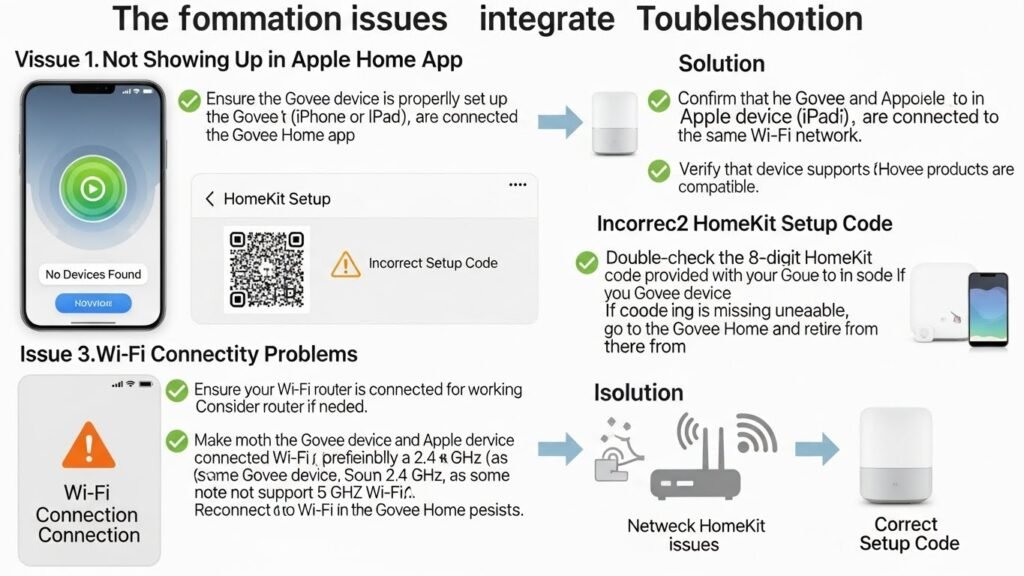
Though connecting Govee devices to Apple HomeKit is usually a smooth process, sometimes issues may arise. Here’s a troubleshooting guide for the most common problems:
- Device Not Showing Up:
- Make sure your Govee device is properly set up and functioning in the Govee Home app before attempting to add it to HomeKit.
- Ensure your Govee device is compatible with HomeKit or Matter. Not all Govee devices support HomeKit directly.
- Make sure your Govee device is properly set up and functioning in the Govee Home app before attempting to add it to HomeKit.
- Incorrect HomeKit Setup Code:
- Double-check the HomeKit setup code (QR code or 8-digit code). You can usually find this on the device’s packaging or in the Govee Home app.
- Double-check the HomeKit setup code (QR code or 8-digit code). You can usually find this on the device’s packaging or in the Govee Home app.
- Wi-Fi Connectivity Issues:
- Ensure that your iPhone/iPad and Govee device are connected to the same Wi-Fi network.
- Govee devices may not be compatible with 5 GHz Wi-Fi networks, so ensure you’re using a 2.4 GHz network for the connection.
- Ensure that your iPhone/iPad and Govee device are connected to the same Wi-Fi network.
- Device Not Responding:
- If your Govee device isn’t responding to Siri or the Home app, try restarting the device and updating its firmware.
- If you’re using HomeBridge or HOOBS, check that the plugin is correctly configured and there are no issues with the server.
- If your Govee device isn’t responding to Siri or the Home app, try restarting the device and updating its firmware.
- HomeKit Accessory Not Found:
- Ensure that your Apple Home app is up to date and that your HomeHub (Apple TV or HomePod) is connected properly.
- Ensure that your Apple Home app is up to date and that your HomeHub (Apple TV or HomePod) is connected properly.
By following these troubleshooting steps, you can resolve most common issues and ensure that your Govee devices are working perfectly with Apple HomeKit.
Govee Device Compatibility Checklist
When integrating Govee devices with Apple HomeKit, it’s essential to know which models are supported. Not all Govee devices are compatible with HomeKit, and some require third-party solutions such as HomeBridge or HOOBS. Here’s a checklist of Govee devices that can work directly with HomeKit or through the Matter protocol.
Supported Govee Devices with HomeKit or Matter
- Govee LED Strip Light M1: This is a popular choice for users looking to add dynamic lighting to their homes. It supports Matter, allowing it to connect directly with Apple HomeKit.
- Govee Smart Plug Pro: The Smart Plug Pro works with Matter and can be easily paired with Apple HomeKit for simple control over connected devices.
- Govee RGBIC Smart LED Light Bars: These lights also support HomeKit integration through Matter, providing advanced RGB control and automation features.
- Govee Thermometer and Hygrometer: For users who want to integrate their Govee temperature and humidity sensors with HomeKit, the compatible models can be controlled through the Apple Home app.
Devices That May Need Third-Party Solutions
- Govee Smart LED Strip Lights (without Matter support): These models may need HomeBridge or HOOBS to be integrated into the Apple HomeKit system.
- Govee Smart Plugs (non-Pro version): These will require third-party solutions for full integration with HomeKit.
Before purchasing, always check the product specifications or the Govee app for confirmation on HomeKit or Matter support.
Integration with Other Smart Home Ecosystems
While Apple HomeKit provides excellent integration for Govee devices, you can also use them with other popular smart home ecosystems like Alexa, Google Assistant, and SmartThings. Here’s how Govee devices integrate with these ecosystems:
Alexa and Google Assistant Integration
- Govee devices that support Alexa or Google Assistant can be controlled via voice commands. For example, you can ask Alexa to turn off the Govee light strip or change the color settings using Google Assistant.
- Integration with these platforms generally requires linking the Govee account to the Alexa or Google Home app and setting up voice commands.
SmartThings Integration
- SmartThings is another popular platform that works with Govee devices. By linking Govee products to SmartThings, you can use the app for automation, scheduling, and remote control of devices in your home.
- Similar to Alexa and Google Assistant, integration with SmartThings requires adding Govee devices through the SmartThings app and configuring them as part of your home automation system.
These integrations offer users flexibility, especially for those who use multiple smart home platforms in their households.
Detailed Use Cases and Examples
Once you have connected your Govee devices to Apple HomeKit, here are some practical examples and use cases for making the most of this integration:
Ambient Lighting for Different Occasions
- Movie Night Mode: Create a scene where your Govee LED strips change to a dimmed, warm color temperature, providing a cozy atmosphere for movie watching.
- Party Mode: Use the RGBIC feature on the Govee lights to create dynamic, colorful lighting for a party, with colors changing in sync with music.
- Reading Mode: Set up a lighting scene with bright, white light for focused activities like reading or working.
Smart Plug Control for Automation
- Automate Coffee Machines: Plug your coffee machine into a Govee Smart Plug and set up automation in Apple HomeKit to turn it on every morning.
- Fan Control: Use the Govee Smart Plug to control a fan, and set an automation to turn it on when the temperature rises above a certain threshold, especially in summer.
These examples show the potential of Govee’s integration with HomeKit for enhancing the convenience and comfort of your home.
Govee Device Performance Review
While setting up your Govee devices with Apple HomeKit is easy, it’s also important to consider their performance. Here’s a brief review of some popular Govee products in terms of their functionality with HomeKit:
Govee LED Strip Light M1
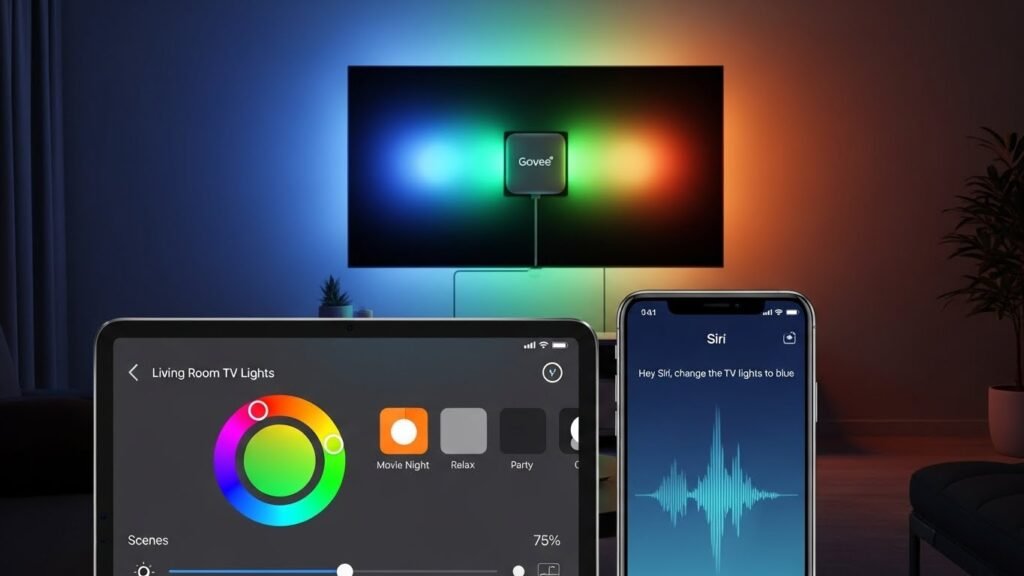
- Performance: The Govee LED Strip Light M1 offers rich colors and vibrant lighting effects. The integration with HomeKit through Matter is seamless, making it easy to control via Siri and the Home app.
- Features: It supports color customization, brightness adjustments, and dynamic lighting effects. The app’s interface is intuitive, and the integration with HomeKit adds a layer of convenience.
Govee Smart Plug Pro
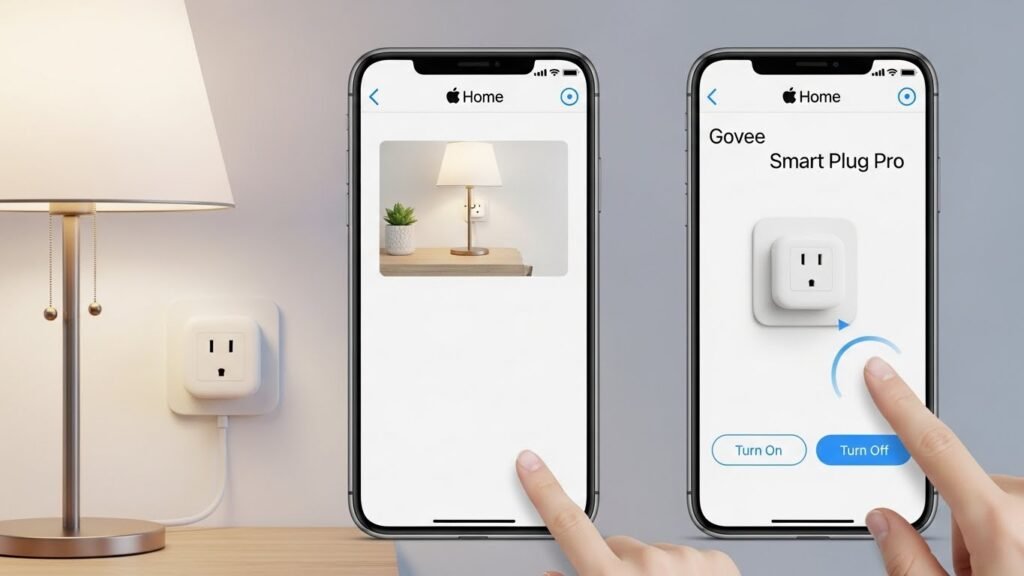
- Performance: The Govee Smart Plug Pro works well with HomeKit, allowing users to schedule on/off times, monitor energy usage, and control the plug via voice commands.
- Features: It’s a great product for automating household devices like lamps, fans, or small appliances, and it’s compact enough to not block adjacent outlets.
These devices are reliable when integrated with HomeKit, but users should note that some devices require additional configuration through third-party platforms.
Cost Comparison for Solutions
There are various methods to integrate Govee devices with Apple HomeKit, each with its associated cost. Here’s a comparison of the costs for different solutions:
AddToHomeKit
- Cost: Free
- This solution is completely free to use and requires no additional hardware. It’s a great choice for those who need a quick and simple solution for integrating Govee devices with HomeKit.
HomeBridge
- Cost: Free, but requires hardware (e.g., Raspberry Pi)
- HomeBridge is free to use, but you’ll need to have a compatible device like a Raspberry Pi or PC to run it. The setup can be more complicated, but it offers maximum customization.
ATH Bridge
- Cost: $30–$50
- The ATH Bridge is a paid, hardware-based solution that requires no additional configuration. It’s ideal for users who prefer a plug-and-play solution without needing to deal with software.
HOOBS
- Cost: $99 for the HOOBS box (hardware), $60 for the HOOBS Pro
- HOOBS is a paid solution that simplifies the HomeBridge experience. It’s a great option for users who want ease of use without sacrificing flexibility. The hardware box comes with pre-configured software for an easy setup.
Each solution has its pros and cons, so users should choose based on their needs and technical comfort level.
Security and Privacy Concerns
When integrating smart devices with Apple HomeKit, security and privacy are always important considerations. HomeKit provides robust security features, such as end-to-end encryption for your smart home data. However, integrating third-party devices like Govee requires extra caution.
Security Features of Apple HomeKit
- HomeKit ensures that all communications between devices are encrypted, making it safer than many other smart home platforms.
- You control which devices and users can access your smart home system. You can grant or revoke access through the Apple Home app.
Privacy Considerations
- Ensure that your Wi-Fi network is secure by using strong passwords and enabling WPA3 encryption on your router.
- When using third-party devices, ensure that the device’s manufacturer adheres to good security practices. Always keep your device’s firmware and apps up to date.
While HomeKit provides robust security, it’s crucial to remain cautious with third-party solutions and maintain good security hygiene.
Advanced Features and Customizations
Apple HomeKit offers many advanced features for automating and customizing your smart home setup. Once your Govee devices are connected, you can use these advanced features to enhance your experience.
HomeKit Secure Video
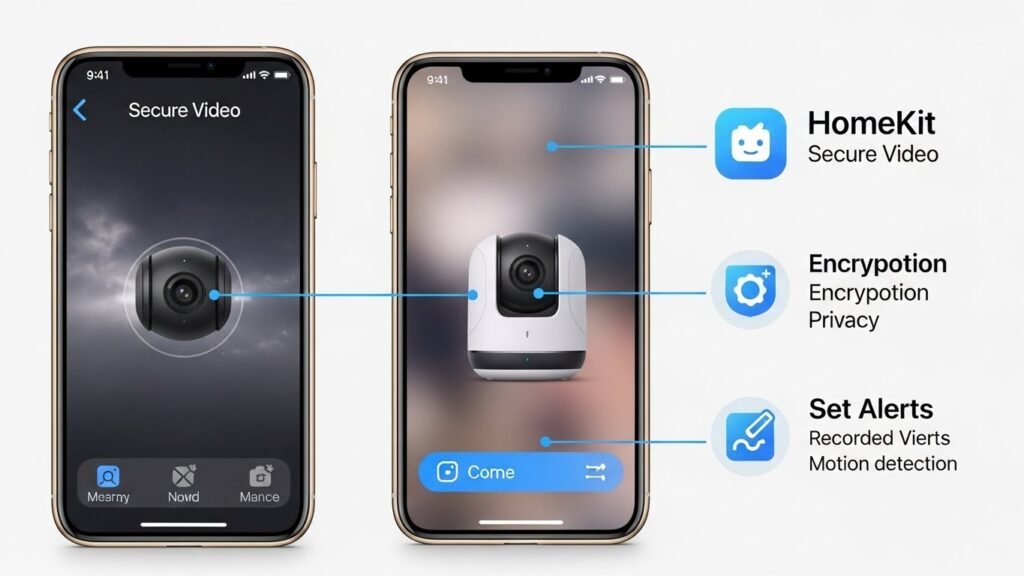
- If you have compatible cameras, you can use HomeKit Secure Video to securely stream and store video from your cameras. This feature works well with devices like smart doorbells and security cameras, providing peace of mind.
Geofencing Automation
- HomeKit allows you to set up geofencing automations, which trigger actions based on your location. For example, you can have the lights turn on when you arrive home and off when you leave.
Siri Shortcuts
- Siri Shortcuts provide even more control over your smart home devices. You can create custom voice commands for your Govee devices, such as “Hey Siri, set movie mode.”
These advanced features allow you to fine-tune your home automation system, making it as efficient and personalized as you need.
Limitations of Govee Devices with Apple HomeKit
While Govee devices offer great functionality, there are some limitations when integrating them with Apple HomeKit:
- Limited Native HomeKit Support: Not all Govee products support HomeKit natively. Devices that don’t support HomeKit will need third-party solutions like HomeBridge or HOOBS to work with the Apple ecosystem.
- Advanced Features May Not Be Available: Some Govee devices may lack access to certain advanced HomeKit features, such as Secure Video, detailed scene control, or precise automation triggers.
- Limited Product Line: While Govee has started to offer more Matter-compatible devices, the selection of HomeKit-supported products is still limited compared to other smart home brands.
By being aware of these limitations, users can make more informed decisions when selecting Govee devices for their HomeKit setup.
Conclusion
Integrating Govee devices with Apple HomeKit is a great way to take your smart home experience to the next level. Whether you’re using AddToHomeKit, HomeBridge, ATH Bridge, or HOOBS, you have multiple options for connecting your devices seamlessly.
Once integrated, you can enjoy full control over your Govee devices, from adjusting the brightness of your LED strip lights to creating custom scenes and automations for different occasions. Troubleshooting is generally easy, but if you run into issues, the solutions provided here will help get everything back on track.
As Govee continues to expand its range of Matter-compatible devices, the process of connecting with Apple HomeKit will become even smoother, bringing even more possibilities for a connected and automated smart home experience.
Frequently Asked Questions (FAQs)
1. What is HomeKit and how does it work with Govee devices?
HomeKit is Apple’s framework for smart home devices. It allows users to control various smart devices, like lights, thermostats, plugs, and security cameras, from their iPhone, iPad, or Apple Watch using the Apple Home app or voice commands through Siri. For Govee devices, HomeKit integration allows you to control and automate your Govee devices directly within the Apple ecosystem. However, not all Govee devices natively support HomeKit, so integration might require third-party solutions like HomeBridge or HOOBS.
2. Can I control my Govee devices with Siri after integrating with HomeKit?
Yes! Once you have successfully integrated your Govee devices with Apple HomeKit, you can control them with Siri voice commands. For example, you can say, “Hey Siri, turn on the Govee lights,” or “Hey Siri, set the Govee LED strip to blue.” Siri will recognize your devices and allow you to control them just like any other HomeKit-compatible device.
3. Are there any Govee devices that natively support HomeKit?
Currently, Govee does not offer many devices that natively support Apple HomeKit. However, some newer Govee products, like the Govee LED Strip Light M1 and Govee Smart Plug Pro, are Matter-compatible. Devices that support the Matter protocol can be integrated into Apple HomeKit directly without the need for third-party software like HomeBridge or HOOBS.
4. Can I use Govee devices with Alexa or Google Assistant in addition to Siri?
Yes, Govee devices can be integrated with Alexa and Google Assistant. If your Govee device is connected to HomeKit, it can also work with Alexa and Google Assistant, depending on the setup. However, for full compatibility, you might need to use the Govee Home app or a third-party solution like HomeBridge, which allows for cross-platform control.
5. How can I reset my Govee device if it’s not responding after adding it to HomeKit?
To reset your Govee device, follow these general steps:
- Disconnect the device from power.
- Wait for about 10-15 seconds before reconnecting it.
- Hold down the power button for about 5-10 seconds until the light flashes, indicating the reset is successful.
- You can now re-add the device to HomeKit through the Apple Home app or the HomeBridge/HOOBS interface, depending on your setup.
6. Is there a limit to the number of Govee devices I can add to Apple HomeKit?
There is no strict limit to the number of devices you can add to Apple HomeKit. However, the overall performance and reliability may be impacted if you add too many devices, especially if your Wi-Fi network isn’t strong enough to handle multiple connections. It’s a good practice to ensure your router and network can support the number of devices you plan to connect.
7. What is the difference between HomeBridge and HOOBS?
Both HomeBridge and HOOBS serve the same purpose: they allow non-HomeKit devices to integrate with Apple HomeKit. The key difference is that HOOBS is a user-friendly, pre-configured version of HomeBridge. It provides a simplified setup with a graphical interface, making it easier for non-technical users. HomeBridge, on the other hand, requires more manual configuration and is better suited for users who prefer a customizable, DIY approach.
8. Can I use Govee devices for home automation with Apple HomeKit?
Yes, Govee devices can be used for home automation within the Apple HomeKit ecosystem. For example, you can set up automation to turn on your Govee LED strip when you arrive home, or dim the lights at sunset. Automation can be set up directly in the Apple Home app, where you can create custom routines based on time, location, or device actions.
9. Why are some Govee devices not showing up in the Apple Home app?
If your Govee device is not showing up in the Apple Home app, check the following:
- Ensure that the Govee device is connected to the same Wi-Fi network as your Apple device.
- Make sure you are using the correct HomeKit setup code (QR or 8-digit code).
- If you’re using third-party integration (HomeBridge or HOOBS), make sure the plugin is properly configured and updated.
- Try restarting both the Govee device and your Apple device.
- Ensure that the device is compatible with HomeKit.
10. Can I control my Govee devices from anywhere using Apple HomeKit?
Yes, if you have an Apple Home Hub (Apple TV, HomePod, or iPad), you can control your Govee devices remotely, even when you’re not at home. The Home Hub acts as a bridge, allowing you to access and control all HomeKit-enabled devices from anywhere. Without a Home Hub, remote control is not available unless the devices are physically in range of your Apple device.
11. Do I need a subscription to use Govee with HomeKit?
No, you do not need a subscription to use Govee devices with Apple HomeKit. The integration is free once the devices are paired with HomeKit through the Apple Home app or using third-party solutions like HomeBridge or HOOBS. However, some Govee products may require premium services for advanced features like cloud control or additional customization within the Govee Home app.
12. How can I update the firmware of my Govee device when it’s connected to HomeKit?
To update the firmware of a Govee device connected to HomeKit:
- Open the Govee Home app on your smartphone.
- Select the device you want to update.
- Check for any available firmware updates. If an update is available, follow the on-screen instructions to install it.
- Once updated, your device will automatically sync with Apple HomeKit, ensuring it runs with the latest features and improvements.
By staying up-to-date with firmware, you ensure your Govee devices perform at their best and remain compatible with the latest HomeKit features.